As an administrator, you can customise draw.io in Confluence Cloud to make it easier and faster for your users to create diagrams following your company’s particular style by setting default colours, style palettes, and fonts. You can even make the draw.io interface fit your customised Confluence Cloud interface.
Custom colour palettes
Custom fonts
[Custom default shape and connector styles](#shapes and connector)
Custom menu colour and theme
Custom colour palettes
There are three main colour palettes you can customise in draw.io. The style palette at the top of the format panel on the Style tab, preset colours in the colour dialog, and the large colour palette in the colour dialog. These are changed by adding colour information to the JSON string in the draw.io Configuration section in your Confluence Cloud settings.
Set custom colour palettes for draw.io in Confluence Cloud
- Go to the draw.io Configuration tab in the draw.io Configuration section of your Confluence Cloud settings.
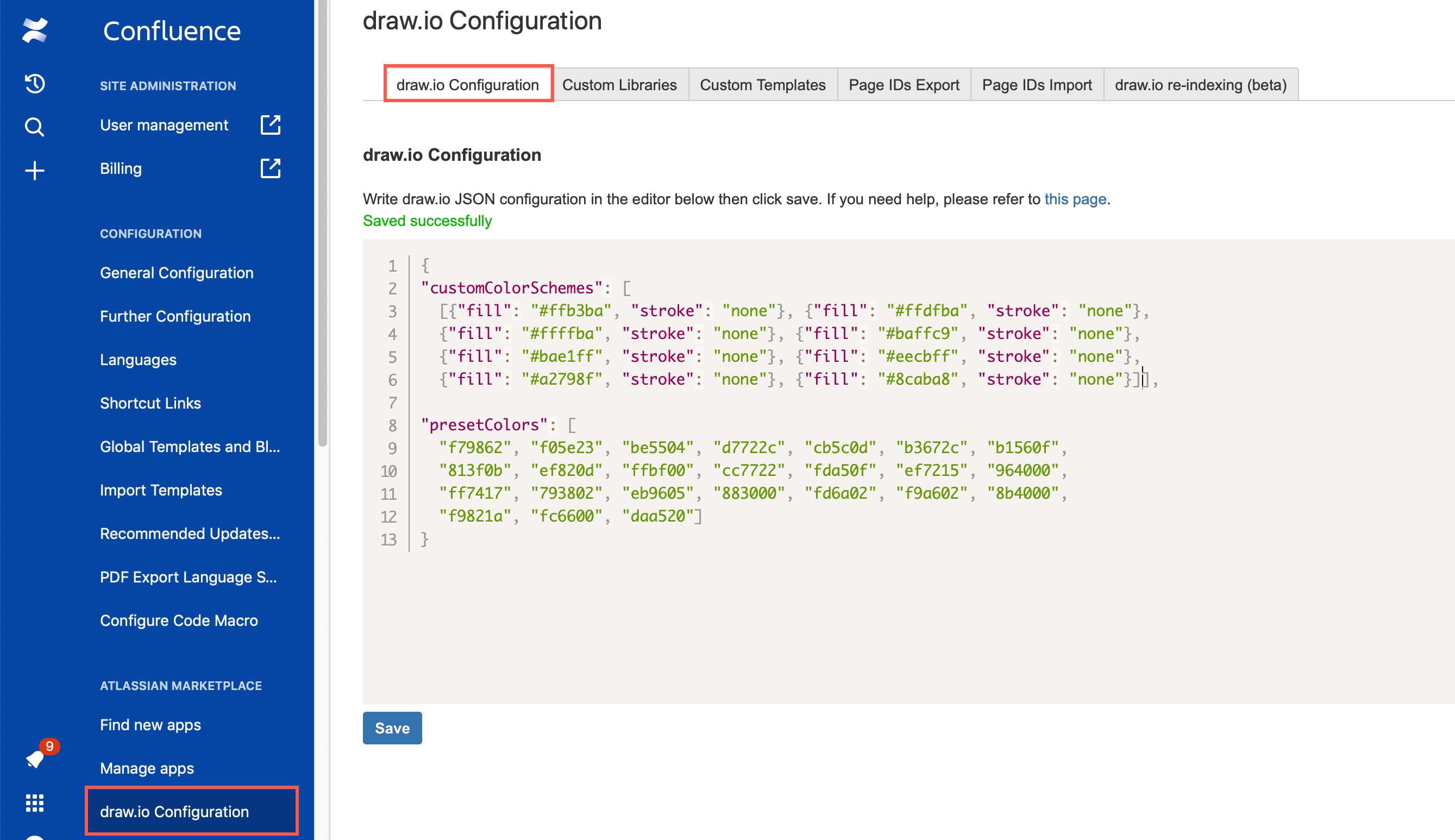
- For each colour palette you want to customise, define the colours using hex codes.
defaultColorSchemes:Changes the styles in the format panel colour palette.customColorSchemes:Adds an extra styles in front of the default colour schemes.presetColors:Changes changes the default colours in the small upper pallette in the colour dialog, and you must specify colours for the entire small palette. Add hex colour codes without the hash character (#).customPresetColors:Adds one or more colours which will appear in front of the default preset colours. Add hex colour codes without the hash character (#).defaultColors:Changes the large palette in the colour dialog. You must define all 120 colours. Add hex colour codes without the hash character (#).
- Once you have finished customising, click Save.
For example, this defines a custom pastel style palette (with no border), and an orange default preset colour palette.
{ "customColorSchemes": [ [{"fill": "#ffb3ba", "stroke": "none"}, {"fill": "#ffdfba", "stroke": "none"}, {"fill": "#ffffba", "stroke": "none"}, {"fill": "#baffc9", "stroke": "none"}, {"fill": "#bae1ff", "stroke": "none"}, {"fill": "#eecbff", "stroke": "none"}, {"fill": "#a2798f", "stroke": "none"}, {"fill": "#8caba8", "stroke": "none"}]], "presetColors": [ "f79862", "f05e23", "be5504", "d7722c", "cb5c0d", "b3672c", "b1560f", "813f0b", "ef820d", "ffbf00", "cc7722", "fda50f", "ef7215", "964000", "ff7417", "793802", "eb9605", "883000", "fd6a02", "f9a602", "8b4000", "f9821a", "fc6600", "daa520"] }
 See more examples of how to customise colours in draw.io for Confluence Cloud
Custom fonts
You can change what appears by default in the list of fonts in the Font tab of the format panel by editing the draw.io configuration JSON in your Confluence Cloud Settings.
- Go to the draw.io Configuration tab in the draw.io Configuration section of your Confluence Cloud settings.
- Add the code to customise the default font list. The code below lists only three fonts in the default font list. If you don’t want to override the default fonts, use the
customFontsoption to add the extra fonts at the top of the fonts list.{ "defaultFonts": ["Courier New", "Tahoma", "Helvetica"] }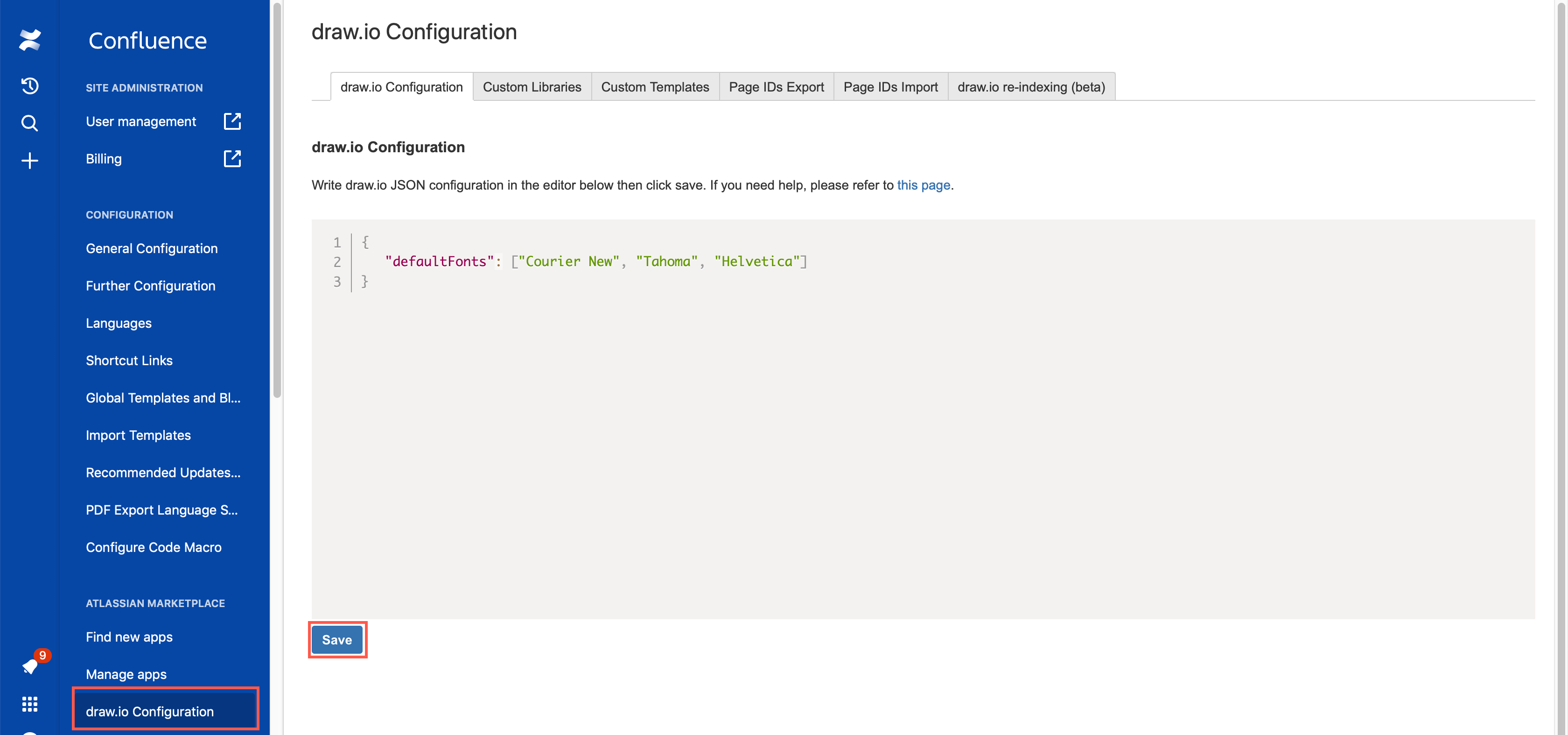
- To use web or Google fonts, add the publicly accessible URL to the
fontCssoption, and then add it to either thedefaultFontsor thecustomFontslist. This adds two Google fonts and one web font to the custom fonts list. Make sure this is all one line.{ "fontCss": "@import url('https://fonts.googleapis.com/css?family=Princess+Sofia&display=swap'); @import url('https://fonts.googleapis.com/css?family=Girassol&display=swap'); @font-face { font-family: 'Waltograph'; src: url(https://fontlibrary.org/assets/fonts/waltograph/23a40698cd1bb84f930b7a0884c134a6/ab260a56f2b852b78f81eac337e0a2fc/WaltographRegular.otf) format('opentype') }", "customFonts": ["Princess Sofia", "Girassol", "Waltograph"] } - Click Save when you are done.
 Exporting diagrams: The external image and PDF export features do not currently support custom fonts. Learn more about using custom fonts in draw.io in Confluence Cloud
Custom default shape and connector styles
Administrators can also add JSON code in the draw.io configuration to set a custom default style for shapes and connectors. When a Confluence Cloud user adds a shape to the drawing canvas or draws a connector, it will automatically use this by default, until they set a new style.
defaultVertexStylesets the default style for shapes.defaultEdgeStylesets the default style for connectors.
- Go to the draw.io Configuration section of your Confluence Cloud settings.
- Add the style settings to the JSON text entry area on the *draw.io Configuration *tab.
- Click Save when you are done.
{ "defaultVertexStyle": {"fontFamily":"Courier New", "fillColor":"#dae8fc", "strokeColor":"#6c8ebf", "strokeWidth":"1"}, "defaultEdgeStyle": {"fontFamily":"Courier New", "edgeStyle":"orthogonalEdgeStyle", "rounded":"1", "jettySize":"auto", "orthogonalLoop":"1", "fillColor":"#dae8fc", "strokeColor":"#6c8ebf"} }Now, whenever a new user creates a diagram, shapes added to the drawing canvas will follow this style. Learn more about using personal and global custom default styles in Confluence Cloud
Custom menu colour and theme
You can change the colour of the draw.io editor’s menu bar in Confluence Cloud by adding some CSS code to the draw.io Configuration. This is useful when you want a consistent style or theme for your Confluence apps in your customised Confluence Cloud instance. You can also set a theme to use by default whenever a user creates a diagram.
- Go to the draw.io Configuration tab in the draw.io Configuration section of your Confluence Cloud settings.
- Add the CSS code to the JSON string to customise the background colour of the menu bar.
- Set a default theme using the
uioption. With the following configuration code, users will see an orange menu bar and use the Kennedy theme by default.{ "css": ".geMenubarContainer { background-color: #F08705 !important; } .geMenubar { background-color: #F08705 !important; }“, "ui": "kennedy" } - Click Save when you are finished.
 The four themes you can use include:
Kennedy: The Kennedy theme does not include the draw.io logo.atlassian: The default Atlassian theme uses the Atlassian colours.dark: The Dark theme is for users who prefer working on a dark background.min: The Minimal theme has a larger drawing canvas and uses floating panels for shape libraries and format settings. See more about customising the draw.io user interface in Confluence Cloud