As an administrator, you can customize draw.io in Confluence Cloud to make it easier and faster for your users to create diagrams by making custom shape libraries and templates available by default.
You can also customize default colors, style palettes, fonts and even the draw.io UI in Confluence Cloud.
Directly go to:
Custom shape libraries
Custom shape libraries let you add shapes, images, clipart, groups of shapes, custom shapes, and even entire diagrams to your own shape library to make diagramming faster and easier.
If an entire team needs to work with the same shape library, you can add it to the draw.io Configuration section of your Confluence Cloud settings.
- Head to the Settings cog in the top right of your Confluence instance.
- In the left side menu, scroll down and expand the Apps dropdown, then click on draw.io Configuration
- Go to the Custom Libraries tab, then click on Add Library.
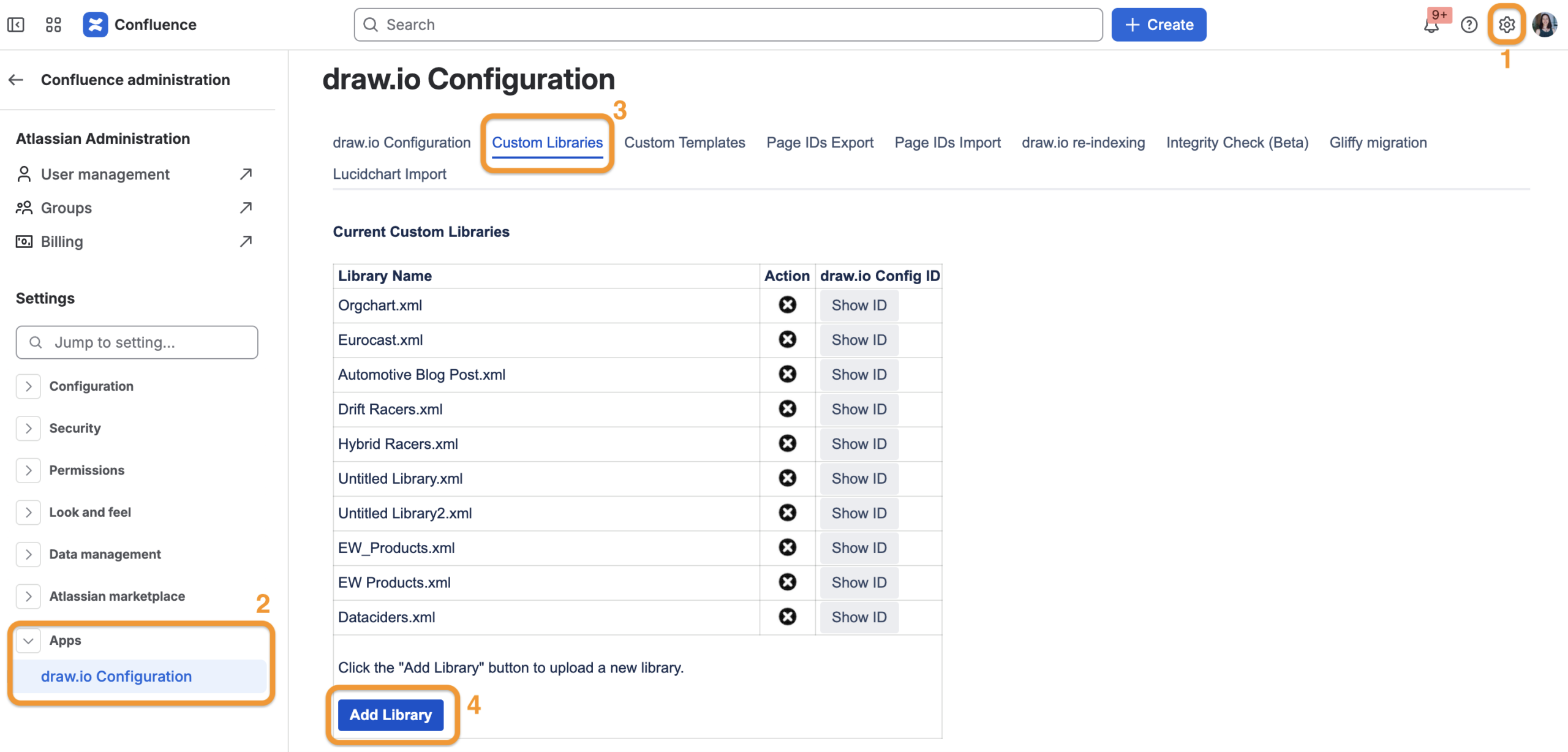
Your users can now open the shared custom library from the draw.io editor.
Set shape libraries to open by default
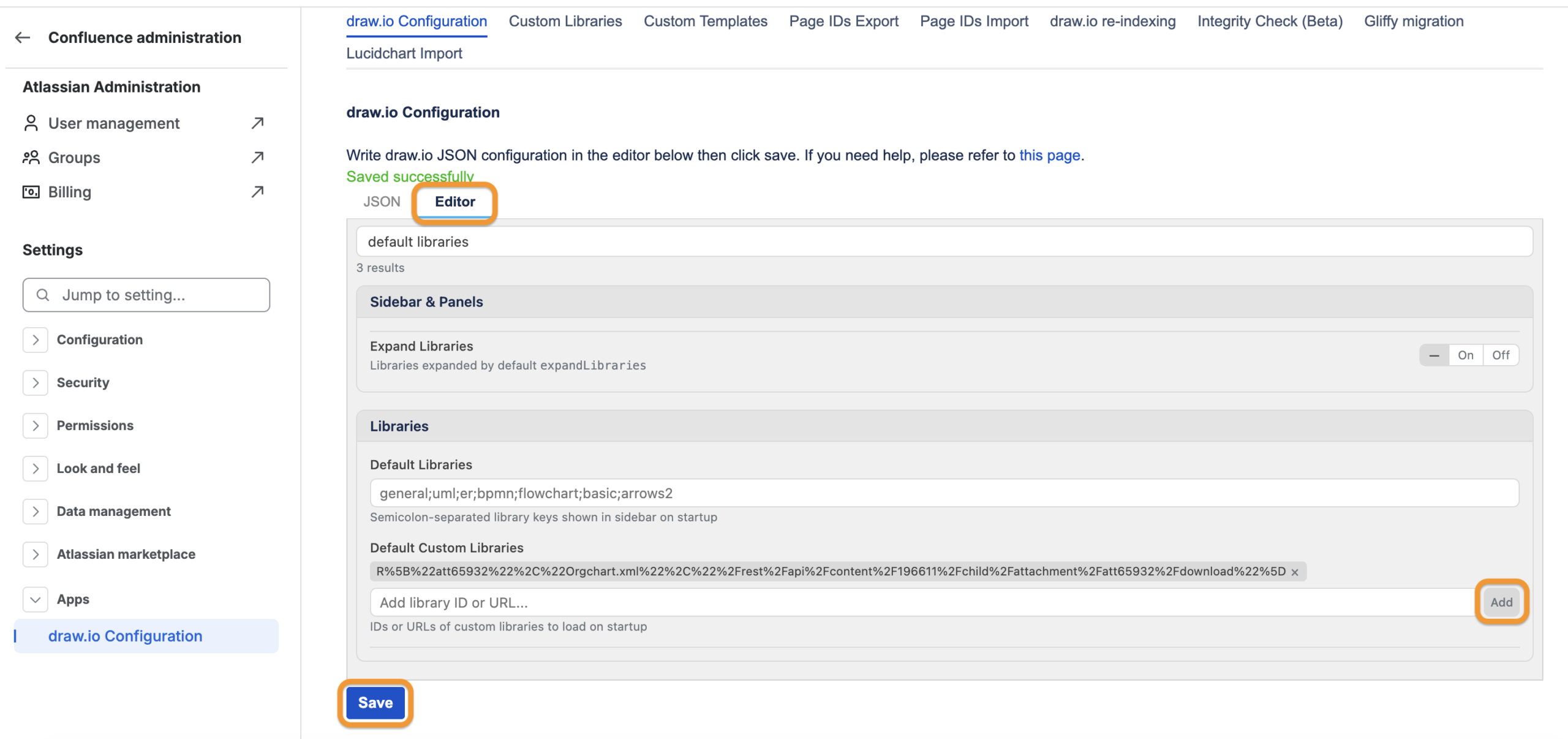
As an administrator, you can also set which shape libraries are opened by default:
- Go to the draw.io Configuration settings.
- In the Editor tab, type “default libraries” in the search bar. Here you can set which libraries and which custom libraries you want to open by default.
- Click Save when you are finished with the draw.io configuration, then hit *Ctrl *or Cmd + R to refresh the page.
See how to use custom shape libraries in Confluence Cloud
Custom templates
Create libraries of custom template diagrams for different teams and purposes, such as floor plans for HR, infographic foundations for marketing, BPMN layouts for internal documentation, or UML representations of existing databases or code for developers, etc.
For full details on how to add and share custom templates, see our related blogpost, Stop rebuilding the same diagram: Set up custom templates in draw.io
Built-in features (formerly plugins)
Some features that previously had to be enabled as plugins are now built into draw.io for Confluence and Jira, so they’re available directly from the draw.io menus with no setup needed:
- Anonymize: scramble the text and remove metadata from your diagram, which is useful when you need to share it externally.
- Export SVG image: export your diagram as an SVG file, with shape metadata and IDs included.
- Insert from SQL: paste SQL to automatically create an entity relationship diagram.
- Extract text: pull all of the text out of your diagram.
Want to dive deeper into the world of draw.io? Access our linktr.ee page to follow us on social media and learn how others use draw.io, as well as pick up some helpful tips and tricks.
Not using draw.io yet? Convince yourself and start your free 30-day trial today. Or book a free no-obligation demo with our customer success team to learn more about how draw.io can make life easier and more productive for you and everyone in (and outside of) your company!
Happy diagramming!