Lines, connectors, arrows, transitions - these are the glue that hold diagrams together. They make your diagram make sense. There are many different styles you can use on your connectors - different connection point styles or arrow heads, different line styles, colors, curve styles and more. Styling your connectors will help make your diagrams more readable.
Arrow heads and connection symbols
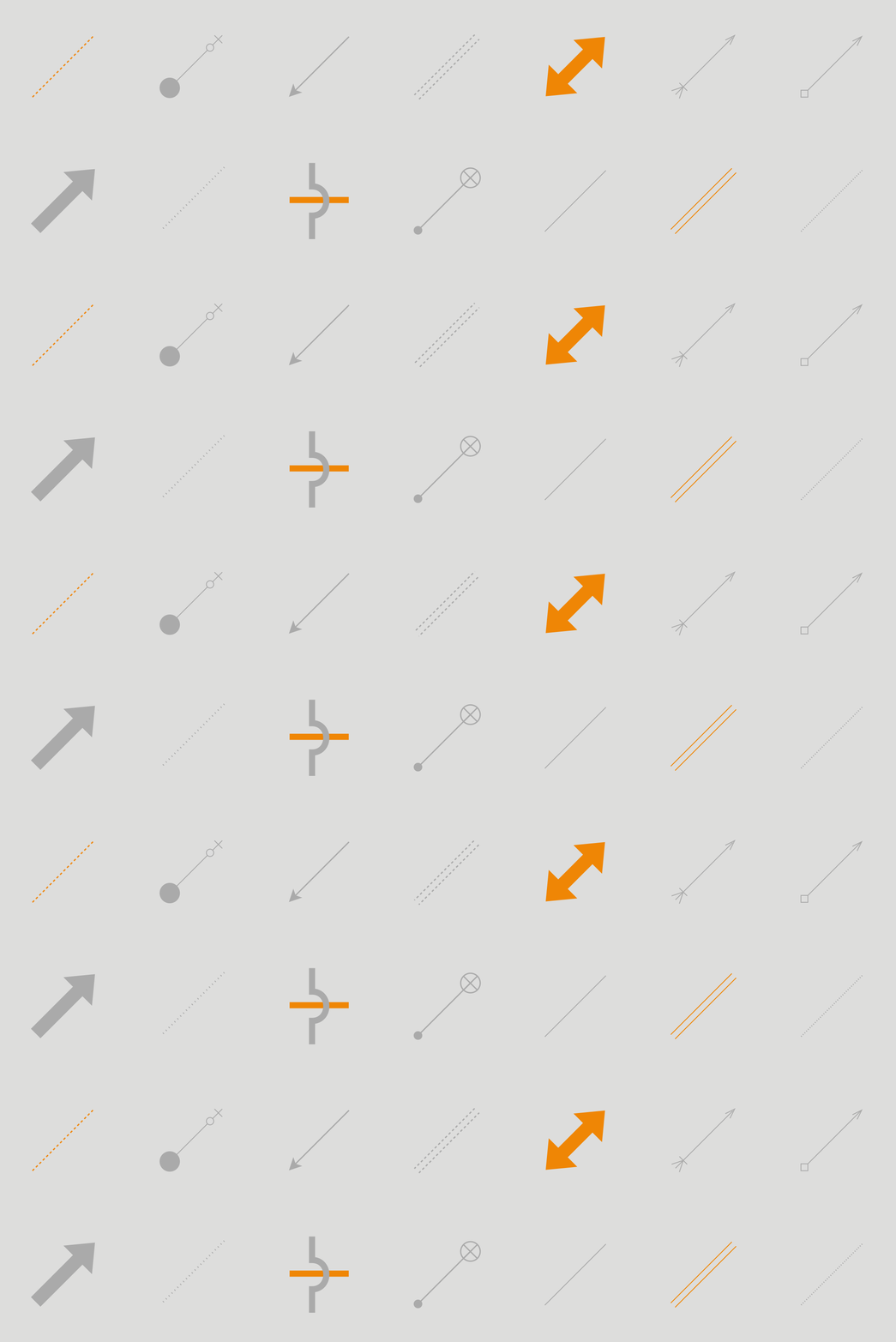
There are different styles of arrow heads, which also include diamonds, circles and other notations used in UML diagrams, electrical diagrams and more. Select your connector, then look in the format panel on the right - there is a huge list of connection styles or arrows you can use for both the start and the end of your connector. Choose an arrow or connection symbol from the start and end drop-down lists. Alternatively, you can use the connector shapes (with arrows attached) from the General or Misc shape libraries in the left pane. Once you have chosen a certain style, when you draw a new connector, it will use that style.

Line styles
There are several different line styles that you can use for your connectors, found in the Style tab of the format panel on the right. Select a connector then select the line style from the second drop down selector. Double-line connectors and a larger arrow outline shape are available in the first drop down selector in the format panel, from in the General shape library on the left, or in the toolbar above.

Filled double line connectors are available from the Misc shape library (the Filled edge shape). These are ideal to use as water pipes - red for hot water, blue for cold - or any other types of ‘pipes’. Where connectors cross over each other, you can use line jumps to make it clear that they don’t intersect. In the format panel, you can choose between no line jumps, or to style your line jumps as an arc, a gap, or a sharp ‘bend’.

Connector** colors**
You can change the connector colors easily - use the palette in the Style panel, or click on the color box.

Waypoints
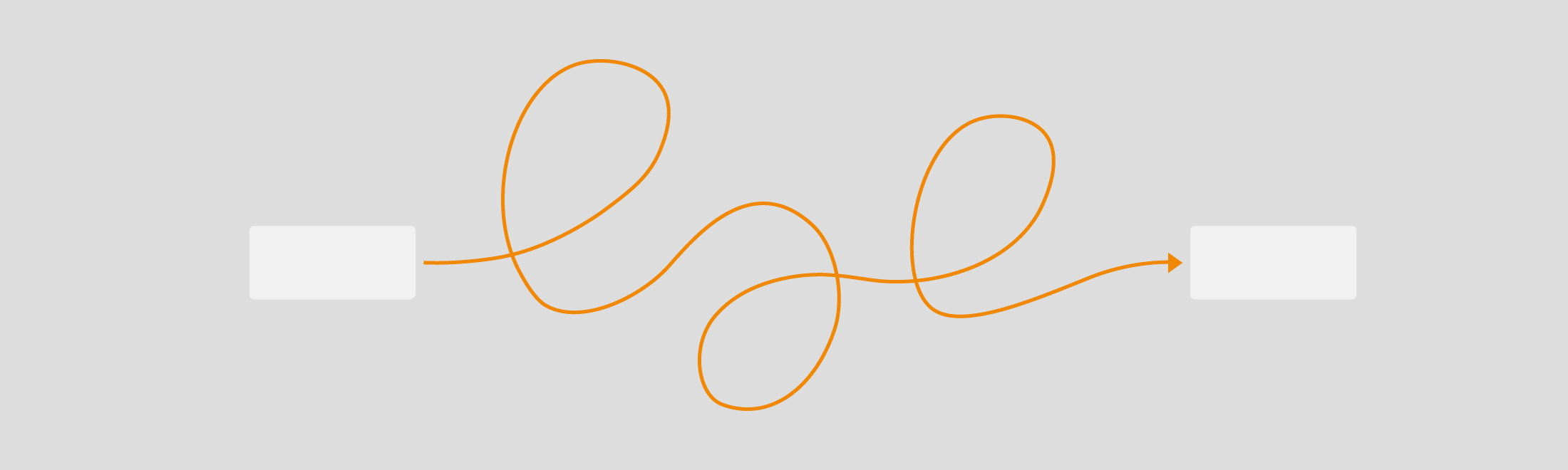
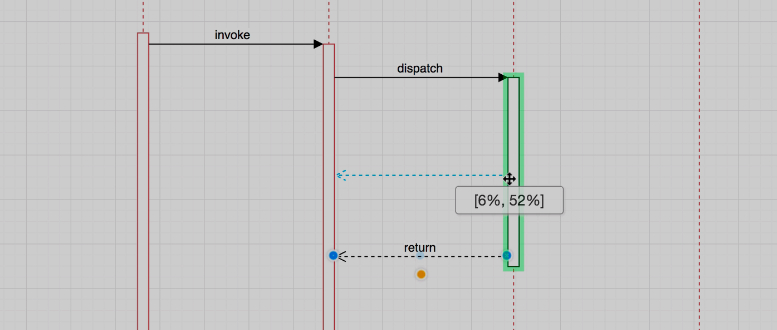
Waypoints are used to add curves or bends to connectors. Simply click and drag one of the light blue waypoints to add a new waypoint and reshape your connector. To remove a single waypoint, drag it so that it is in line with the waypoints on either side. You can also select the connector, right click and select Clear Waypoints from the context menu to remove all waypoints. For connectors with bends or waypoints in them, you can choose to style the bends as sharp, rounded or curved.

Animate the connectors
Animating your connectors is great for demonstrating directional flow charts, electrical circuits and more. To animate your connectors:
- Click on the connector you wish to animate. Hold Ctrl or Cmd and click to select multiple connectors
- On the right-hand side go to Style > Property and click on the arrow to expand the field
- Scroll down to Flow Animation and check the box
Working with connectors
We’ve covered the different styles of connectors in this post, but in previous posts, we’ve also explained how to work with connectors:
- See the difference between floating and fixed connections, and learn how to use them.
- Learn how to connect shapes together in four different ways in draw.io.
- Review this tutorial exercise for working with text and connectors.