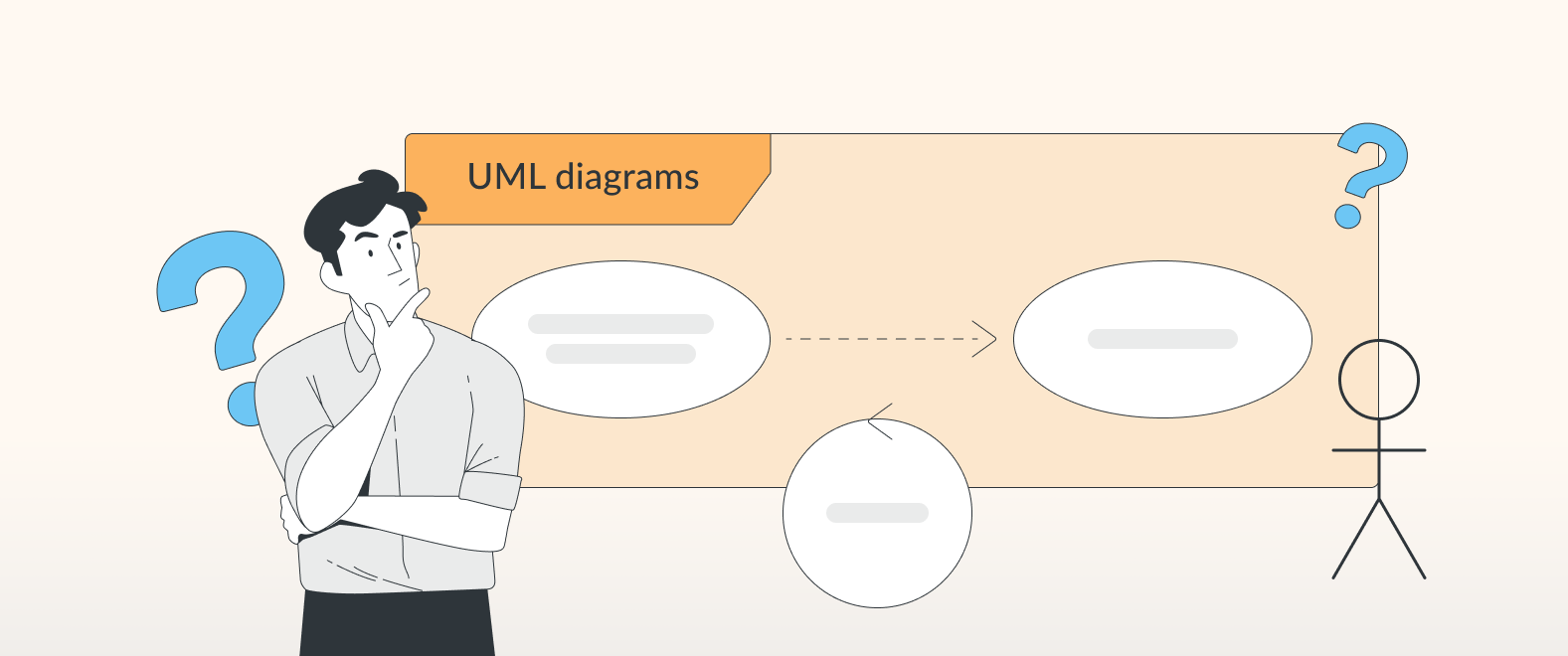
Use case diagrams in UML are used during the requirements phase of software development - they usually put the system requirements into a diagram format, and it’s easy to see what actions a system must support at a glance. Of course, there will be many use cases for your system, and therefore you will usually need to draw many use case diagrams! Along with other UML diagrams, such as activity, sequence and component diagrams, use case diagrams help you to visualize your software and requirements, before jumping in and starting to program.
Enable the UML shape library
In draw.io, all the shapes you need for use case diagrams are in the UML shape library. Click More Shapes … at the bottom of the left-hand panel, then enable the UML shape library and click Apply.

Create a use case diagram with draw.io
In use case diagrams there are external actors (which may be users or processes that interact with your system). These are represented by stick figures. In the practical example I’ve created for this post as shown below - a habit tracking app - there are two external actors, a user and a coach. The actions that the actors take and their goals are represented by ovals with a solid arrow pointing to them. Not all actions can be directly done by an actor - some are triggered by other actions (represented by dotted lines, with the arrow indicating which action triggers the other).

Tip: If you have a more complex diagram than in our example, you can group elements of your diagram together using the ‘folder’ shape. You can then create a ‘sub-diagram’ on a second page in your draw.io diagram, and link the shapes/pages together - multiple pages in your diagrams make it easy to keep track of complex systems!
Use case diagrams can show information that makes it easier to program
You can show specific relationships between the actions (or classes and methods) with include and extend.
- When one action is dependent on another action, use an
includerelationship. For example when you Add a comment in the habit tracker app, you must Update the habit history. But you wouldn’t update the habit history without one of the four actions: Add a habit, Delete a habit, Mark a habit as done or Add a comment. So, the Update the habit history action is dependent on the other actions. - When one action is an extension of another action (or a more specific version of that action), use
extendto show that relationship. In my example, you can Mark a habit as done, or Mark a habit as done AND add a comment in the same action. You can also show inheritance on both actions and actors with the standard UML notation of a connector with an open arrowhead. It’s optional, but sometimes useful to add the standard UML notation for multiplicity:1,1..n, or*. If the relationship between the diagram elements is one-to-one, then simply leave it blank.

A simple use case diagram showing inheritance (actors) and multiplicity.
What other UML diagrams should you create?
Use case diagrams are usually the first type of diagram you would create when designing or redesigning software. They show the main goals of the actors and the general interactions between the use cases. You can diagram your system in much more detail using:
- Activity diagrams to illustrate complex processes that include loops, feedback, choices and parallel actions. Activity diagrams also show the flow of data between the components of your system.
- Sequence diagrams to show the actual steps that happen for each use case in the order that those steps happen.
draw.io for Confluence and Jira
Keep your diagrams together with your software development tasks. draw.io is available as an app for Confluence and for Jira. You don’t need to tuck your diagrams away on your desktop or on a shared drive - you can keep them right with the issues or documentation they refer to, and continue to collaborate with teammates on your diagrams in draw.io.
Go further with draw.io
- New to draw.io? Our draw.io Beginner Academy on YouTube covers everything you need to get started.
- Learn how to add links to shapes and text so you can link to diagrams on other pages.
- Working on a mobile app? It’s easy to use draw.io to mockup your mobile apps.
Want to dive deeper into the world of draw.io? Access our linktr.ee page to follow us on social media and learn how others use draw.io, as well as pick up some helpful tips and tricks. Not using draw.io yet? Convince yourself and start your free 30-day trial today. Or book a free no-obligation demo with our customer success team to learn more about how draw.io can make life easier and more productive for you and everyone in (and outside of) your company! Happy diagramming!